

Scanning basics plus a few advanced tips
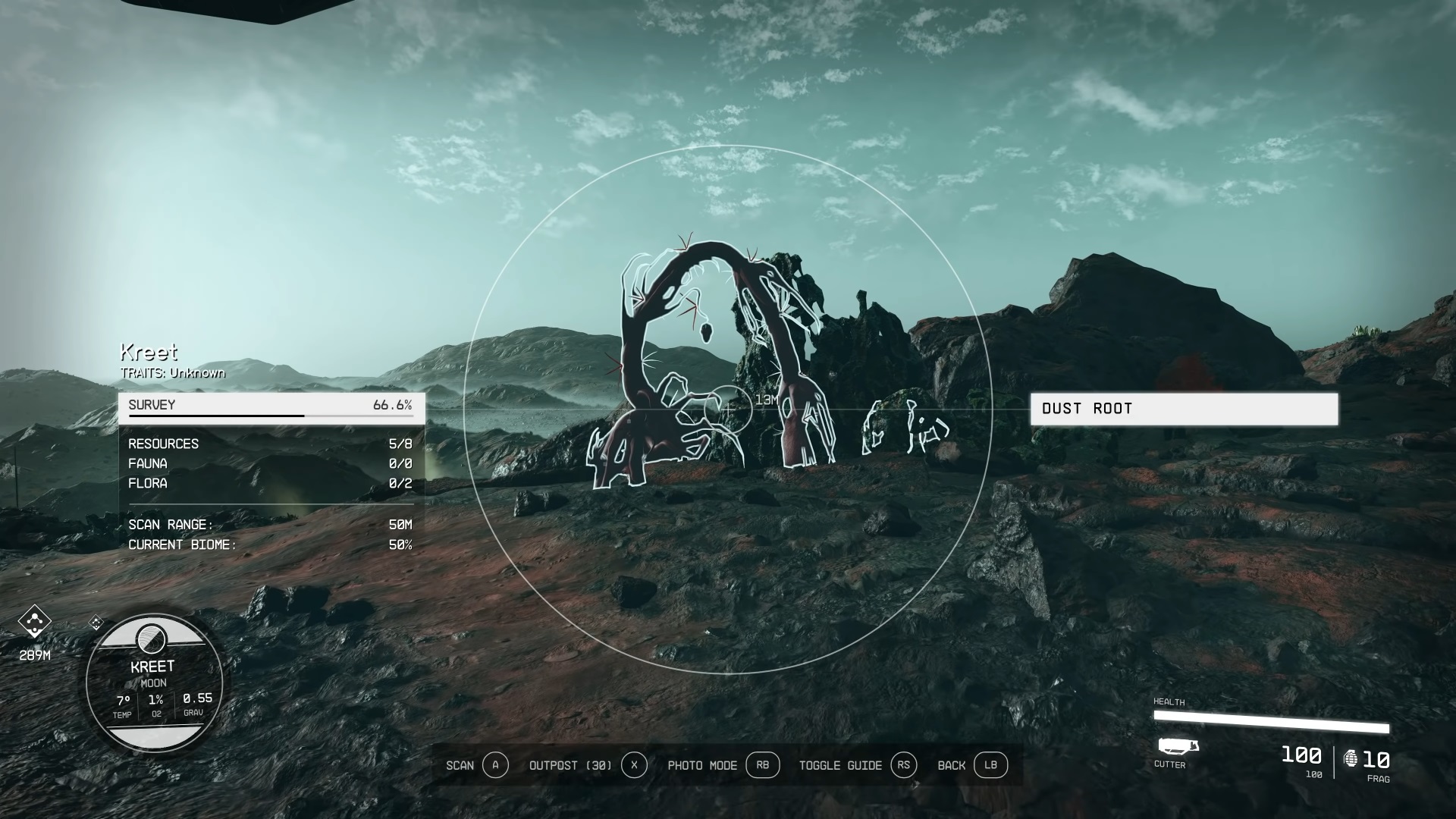
To scan in Starfield, open the scanner with LB (controller) or F (PC), then aim at blue-highlighted objects like plants, creatures, and resources and press the scan button (e.g., E). For planets, scan from orbit in the star map to see a breakdown of what’s there, then land to get a detailed on-the-ground survey of resources, flora, fauna, and traits. Tips include using the scanner to find points of interest (indicated by white icons), searching coastal biomes for aquatic life, and leveling up the Scanning skill for better range.
This video demonstrates how to scan in Starfield:
Scanning basics
- Open the scanner: Press LB on controller or F on PC to activate the scanner.
- Identify items: Scannable items appear in blue. Once scanned, they turn green.
- Scan an item: While the scanner is active, aim at a blue-highlighted object and press the scan button (e.g., E).
- Complete scans: Some objects, like plants and creatures, require multiple scans to reach 100% completion.
- Sell survey data: Fully surveying a planet and selling the data is a valuable source of credits.
Scanning planets and celestial bodies
- Scan from orbit: While in orbit, bring up the star map and scan the planet to get an overview of its resources, flora, fauna, and traits.
- Choose a landing spot: The scanner will show which resources are available at different landing zones. Some planets have multiple biomes, so you may need to explore different areas to find everything.
- Scan on the ground: Once you land, your on-the-ground scanner will show progress on your survey. You’ll still need to manually scan things to complete the survey.
This video explains how to scan planets in Starfield:
Advanced tips
- Look for points of interest: Your scanner will show white icons for undiscovered points of interest, such as caves and other structures.
- Find aquatic life: Aquatic creatures are often found in coastal biomes. Land in a coastal area and walk to the water’s edge to find them.
- Search for resources: Resource nodes appear as colored patches on the ground or as mineral veins. Look for unusual rock formations, as these are often good indicators of resource locations.
- Check for biome completion: If the scanner shows a biome is not fully scanned, it means there are still resources, plants, or animals to find there.
- Upgrade your skills: The Scanning skill can be upgraded to increase your scan distance and zoom, which will save you a lot of time.